🚀 How to Set Up Kitty as a Quake-Style Drop-Down Terminal on KDE Plasma
A quake-style terminal is one you can summon instantly with a hotkey — just like the terminal in the game Quake. Popular tools like Yakuake or Guake have done this for years, but now you can achieve the same result natively with Kitty, the fast GPU-accelerated terminal emulator.
In this tutorial, we’ll set up Kitty’s Quick Access Terminal feature on KDE Plasma, bind it to Meta + O, and configure it to behave like a slick drop-down terminal.
1. Install or Upgrade Kitty
The Quick Access Terminal kitten was introduced in Kitty 0.42. Most Linux distributions ship an older version, so let’s install the latest official build.
Remove the distro version (if installed with apt)
sudo apt remove -y kittyThis is important because Quake-like terminal is in version 0.42+
Install the latest Kitty
curl -L https://sw.kovidgoyal.net/kitty/installer.sh | sh /dev/stdinThis installs Kitty to ~/.local/kitty.app/bin/kitty.
Add Kitty to PATH
echo 'export PATH="$HOME/.local/kitty.app/bin:$PATH"' >> ~/.bashrcsource ~/.bashrcVerify the version
kitty --version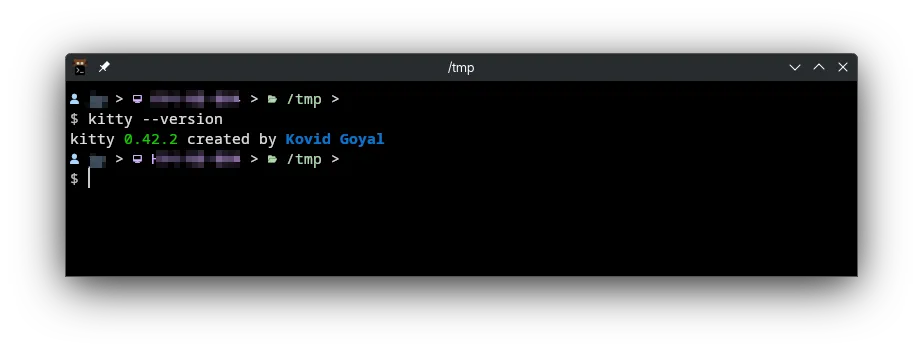
2. Configure the Quick Access Terminal
Create Kitty’s config file for the quick-access terminal:
mkdir -p ~/.config/kitty$EDITOR ~/.config/kitty/quick-access-terminal.confPaste this example:
lines 20columns 120edge topbackground_opacity 0.85hide_on_focus_loss yesapp_id kitty-quickstart_as_hidden yeskitty_override font_size=13This will:
- Open at the top edge of your screen
- Use 20 lines of height, 120 columns of width
- Be semi-transparent (85%)
- Hide automatically if you click elsewhere
- Start hidden until you toggle it
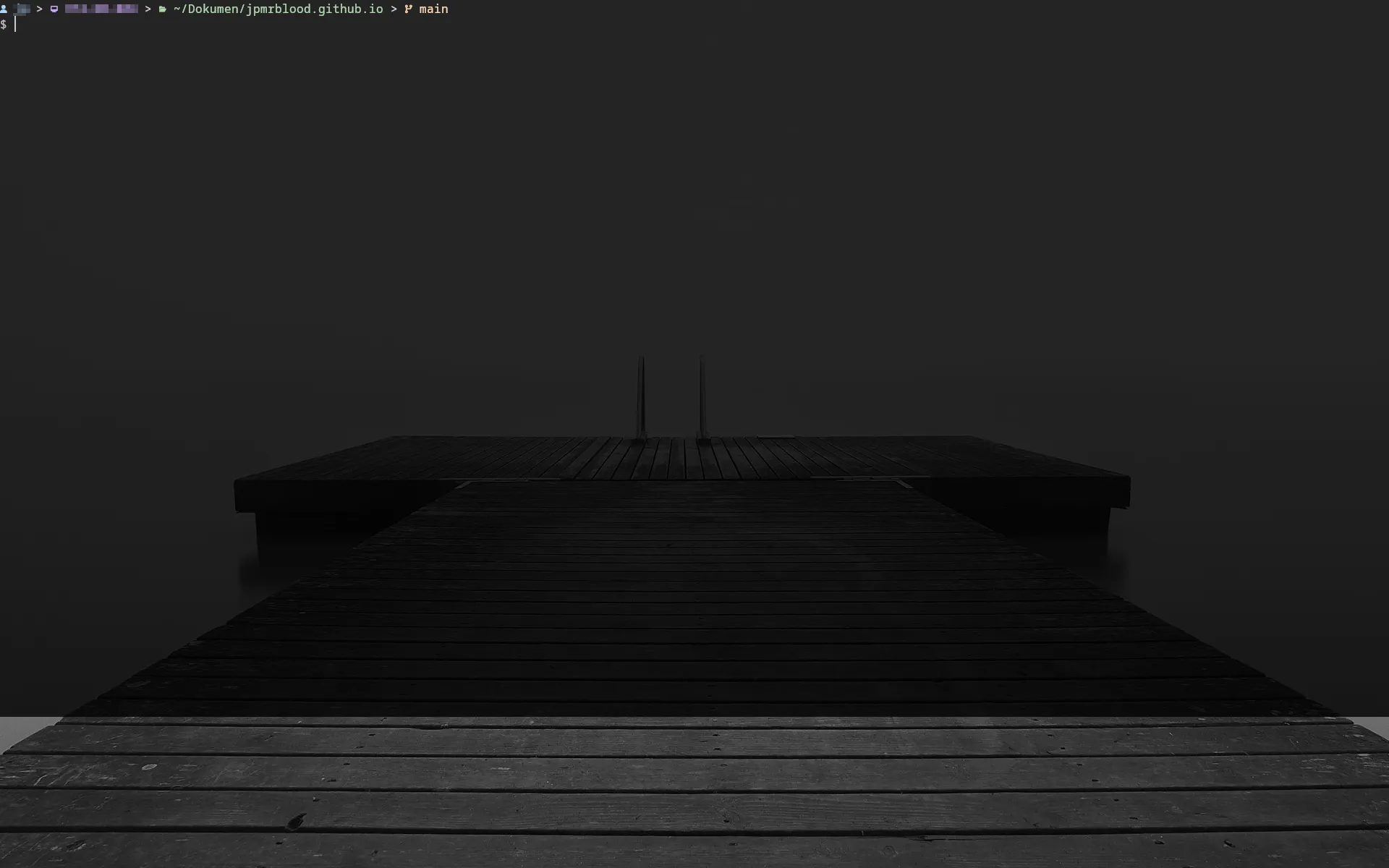
Test it by running:
kitten quick-access-terminal3. Bind It to Meta + O in KDE Plasma
Now let’s make Meta + O toggle Kitty’s quake terminal. Kitty uses kitten for using kitty with plugin. So you need to create application shortcut.
-
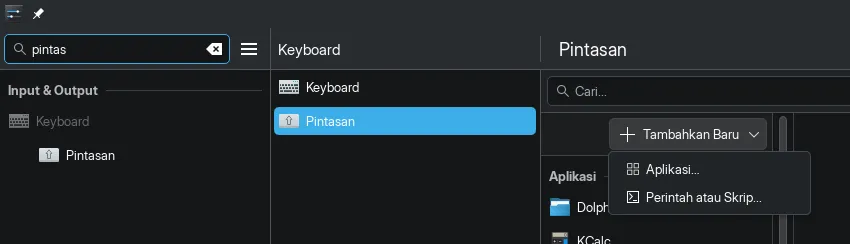
Open System Settings → Shortcuts → Custom Shortcuts.
-
Click Edit → New → Global Shortcut → Command/URL.
-
Fill in:
-
Name: Quake Kitty
-
Command/URL:
Terminal window kitten quick-access-terminal
-
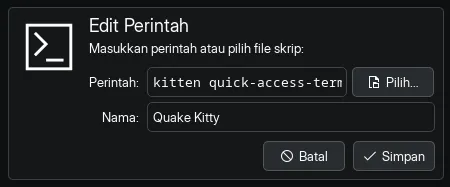
- Search for
kittyorquake kittyand then click the edit button. - In the right panel, click New and press Meta + O.
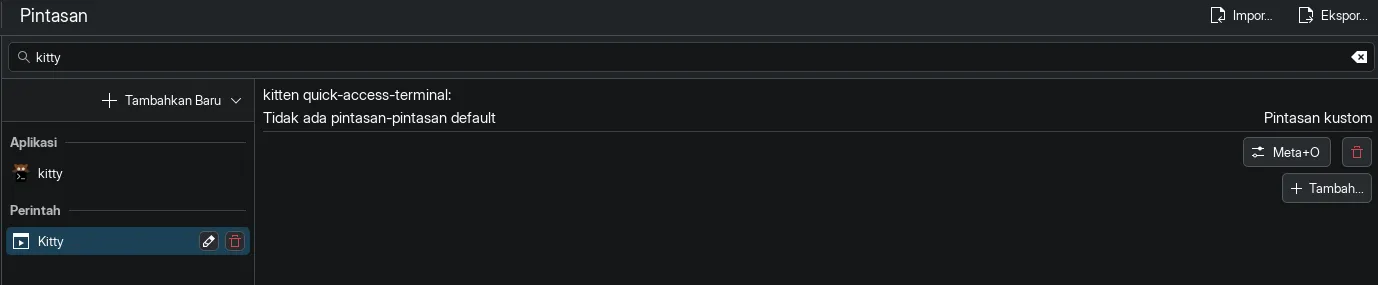
Apply changes — now Meta + O will toggle your Kitty terminal.
4. Refine with KWin Window Rules
To make the experience smoother, you can tweak the window behavior with KWin rules:
-
Launch Kitty quick access terminal once.
-
Right-click its title bar → More Actions → Special Window Settings.
-
Add rules:
- No window borders
- Keep above others
- Skip taskbar and pager
- Placement: Top
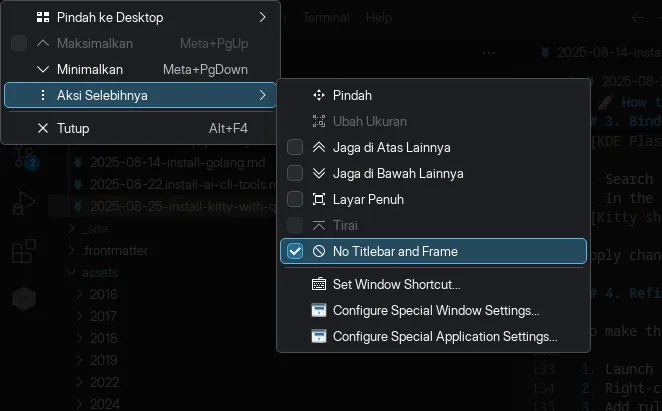
NOTE: Press ALT + F3
✅ Done!
You now have a Kitty-powered quake terminal on KDE Plasma:
- Press Meta + O → terminal drops down
- Press Meta + O again → it hides
- It auto-hides when losing focus (optional)
All with the speed and GPU acceleration of Kitty.
👉 Pro tip: you can run multiple profiles (different colors, shells, or fonts) by creating extra config files like quick-access-terminal-work.conf and binding them to other hotkeys.